The Best TV Settings for Gaming (From Someone Who Fixes Bad Setups Weekly)
Published September 2026 · By Dan, SmartHome Connect LLC · Lenexa, KS
A teenager in Leawood once explained to me, with real pain in his voice, that he kept losing gunfights he swore he’d won. His dad had hired me to mount the TV and tidy the cables. The kid’s problem wasn’t the TV — it was that his PS5 was plugged into the wrong HDMI port, game mode was off, and the TV was adding about a tenth of a second of delay to everything he did.
A tenth of a second doesn’t sound like much. In a shooter, it’s the whole fight.
Ten minutes of settings later, he did that thing where you move the controller stick and watch the screen respond, back and forth, grinning. If you game on a console plugged into a TV — or your kids do — this article is those ten minutes.
Game Mode Isn’t Optional
Every modern TV does heavy image processing: smoothing motion, sharpening edges, enhancing color. That processing takes time — often 80 to 150 milliseconds. For movies, nobody notices. For games, that’s the delay between pressing jump and seeing jump.
Game mode switches most of that processing off, dropping input lag to 10-20 milliseconds on a decent TV. It’s the single biggest improvement you can make, it’s free, and a shocking number of TVs I service have it turned off.
The catch: on many TVs, game mode is a picture mode, and it needs to be enabled per input. Setting it on HDMI 1 does nothing for the console on HDMI 3. Newer TVs (2021 and later) usually have an auto low-latency mode — ALLM — that flips it automatically when the console powers on. Check that ALLM is enabled in your TV’s settings and your console’s video settings both.
The HDMI Port Actually Matters
This is the one that surprises people. On most mid-range TVs, not all HDMI ports are equal — often only one or two support the full HDMI 2.1 feature set: 4K at 120Hz, variable refresh rate (VRR), and full-bandwidth HDR. Plug a PS5 or Xbox Series X into the wrong port and the console quietly falls back to 60Hz.
Look at the labels on the back of the TV. The good port is usually marked “4K@120” or “Game” — on many Samsung and LG models it’s HDMI 4, on Sonys it’s often HDMI 3 and 4. Your console’s display diagnostics will confirm what it’s actually receiving. If it says 4K 60Hz and your TV is 120Hz-capable, you’re in the wrong port or using a cable that can’t carry the bandwidth — which brings up one more myth I’ve already covered: you don’t need a $100 gold-plated HDMI cable, but you do need one rated “Ultra High Speed” for 4K/120.
HDR: Great When It’s Set Up, Muddy When It’s Not
HDR games look incredible — brighter highlights, deeper shadows, more lifelike color. But HDR needs two things set correctly. On the TV: the input’s HDR mode enabled (Samsung calls it “Input Signal Plus,” LG calls it “HDMI Deep Color”). On the console: run the HDR calibration tool — both PlayStation and Xbox have one built in — with your actual TV, in your actual room lighting.
Skip the calibration and HDR games often look worse than standard: gray blacks, blown-out skies, that flat washed look. If a game looks muddy after you enabled HDR, this is almost always why.
Motion Smoothing: Off. All the Way Off.
For movies I recommend a touch of motion smoothing; for sports a low setting works well. For gaming, it goes off completely. Game mode usually disables it anyway, but if your TV lets processing sneak back in, kill it manually. Games already render at high frame rates — smoothing adds lag and artifacts, and gives you nothing.
Same for every “enhancement” with a dramatic name: dynamic contrast, live color, edge enhancement, noise reduction. Off, off, off, off. The console outputs a clean signal; let the TV display it instead of redecorating it.
The Room Around the Screen
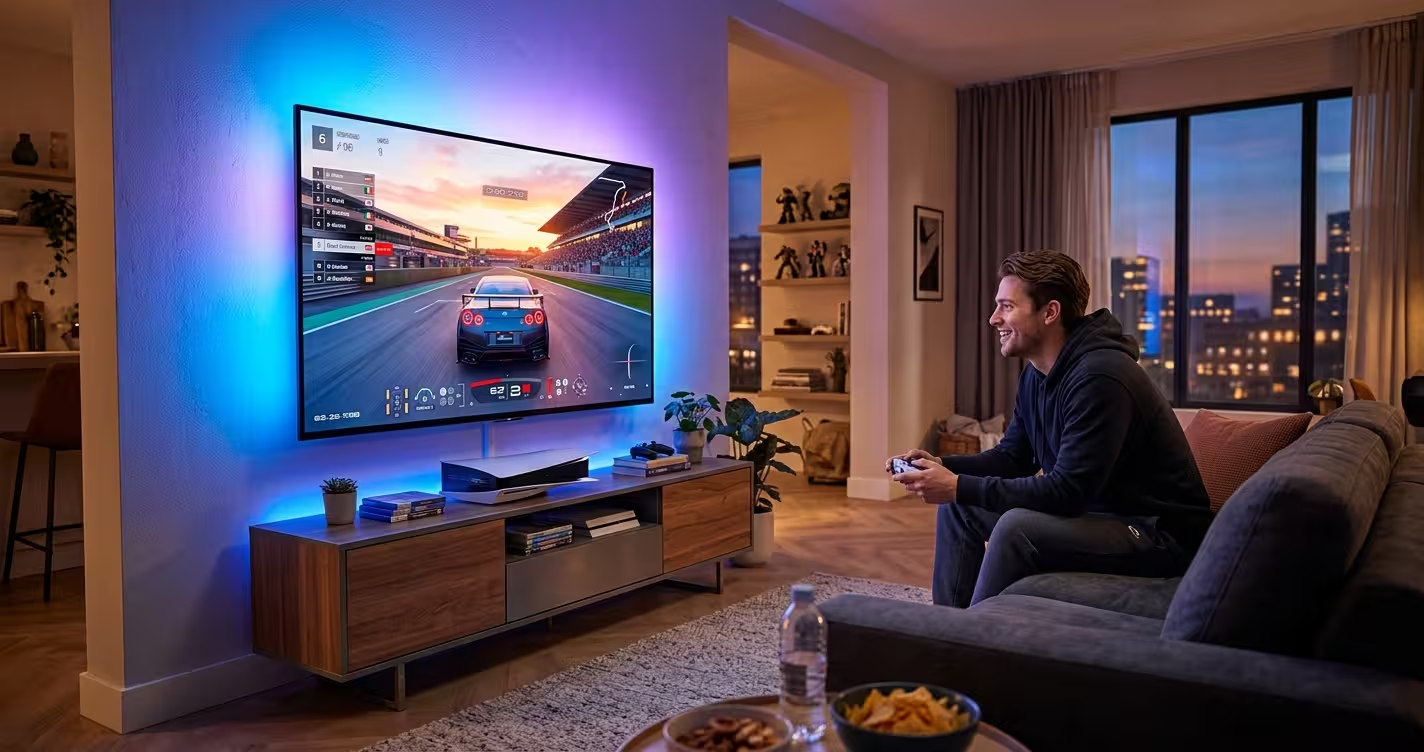
Two upgrades outside the settings menus make long sessions better. Bias lighting behind the TV reduces eye strain dramatically during night gaming — I’ve written about what dark-room screen time does to your eyes, and gamers rack up more dark-room hours than anyone.
And sound: game audio is directional by design — footsteps behind you, shots to your left. TV speakers throw all of it at you from one flat place. Even a modest soundbar restores the direction; a surround setup or good gaming headset completes it. If you’re weighing options, my soundbar vs. surround comparison applies to gaming just as much as movies.
The Five-Minute Version
Game mode: On (check ALLM on TV and console)
HDMI port: The one labeled 4K@120 — with an Ultra High Speed cable
HDR: Enable input HDR on the TV, then run the console’s calibration
Motion smoothing and enhancers: Off
VRR: On, if your TV supports it — smooths frame dips without lag
If you’d rather hand it off — mount, cables hidden, console dialed in, every port doing what it should — that’s a routine visit for me, and the best TV settings for gaming come standard with every install. Call or text (913) 674-9723 or book at smarthomeconnectllc.com/contact-us.
Serving Lenexa, Overland Park, Olathe, Shawnee, Leawood, and the full KC metro.