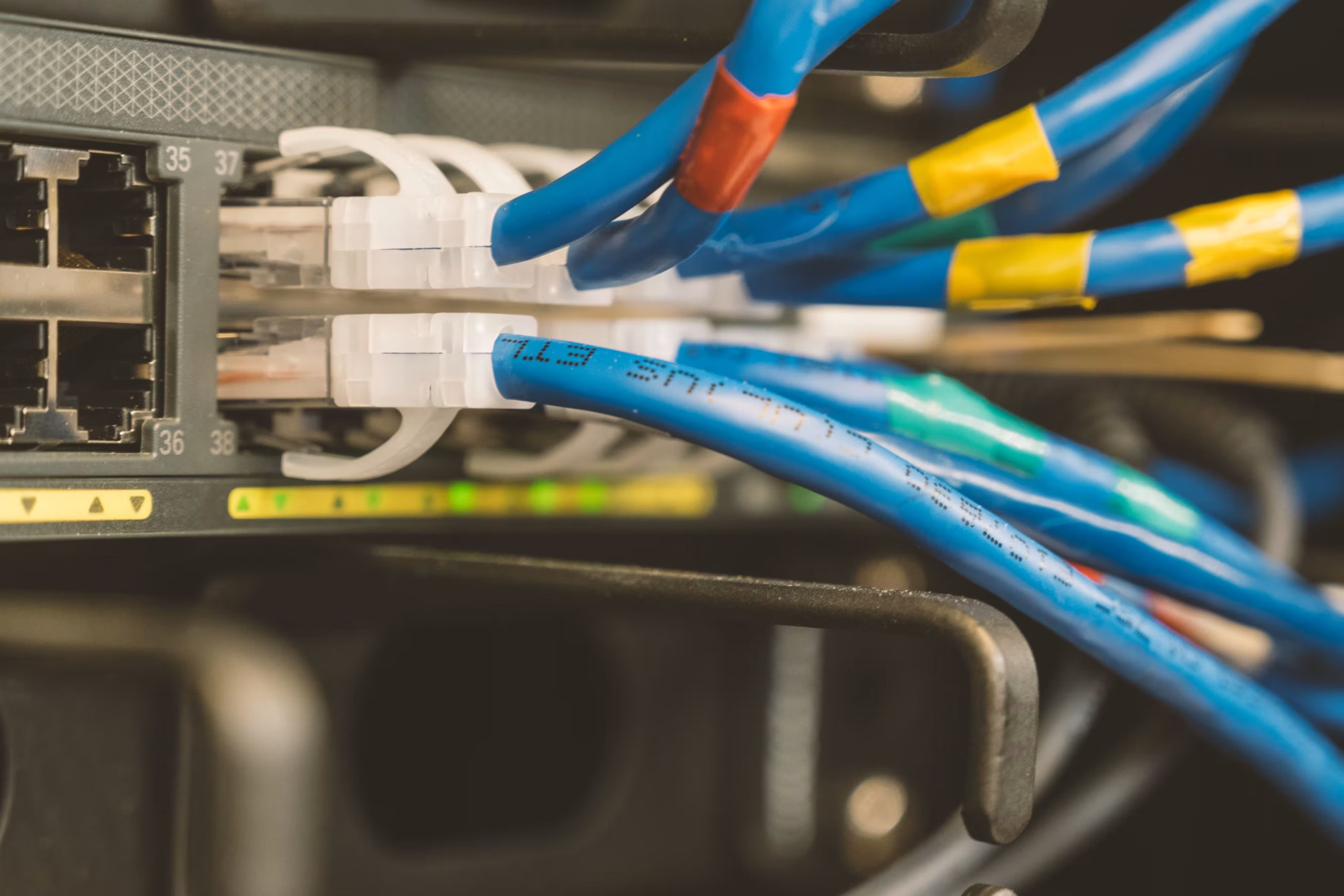
Why Your WiFi Keeps Dropping (And Why a Wired Connection Fixes It for Good)
Published June 2026 · By Dan, SmartHome Connect LLC · Lenexa, KS
Your TV buffers right when the game gets good. Your Ring doorbell goes offline and you don’t notice for three days. Your Zoom call freezes mid-sentence. Your smart lights respond five seconds late. And every time, the answer from your internet provider is the same: “Reset your router.”
You reset it. It works for a day. Then it happens again.
I’m not an IT guy, but I install connected devices — TVs, cameras, streaming boxes, soundbars, smart home gear — in homes across the KC metro, and I deal with WiFi problems on nearly every job. After 12 years of this, I can tell you that most WiFi issues aren’t about your internet speed. They’re about how the signal gets from your router to your devices. And sometimes the honest answer is to stop relying on WiFi for the things that matter most.
Why WiFi Is Less Reliable Than You Think
WiFi is radio waves. That sounds obvious, but people treat it like a wired utility — plug in the router and expect perfect coverage everywhere in the house, all the time. In reality, WiFi signal degrades with every obstacle between the router and the device:
- Walls absorb signal. Drywall reduces signal by 30-40%. Brick cuts it in half. Plaster over wire lath (common in older KC homes) can kill it almost entirely. I wrote a full post on why historic Kansas City homes destroy WiFi — it’s one of the most common issues I see.
- Distance matters. A typical home router covers about 1,500-2,000 square feet under ideal conditions. Add walls, floors, and appliances and that range shrinks fast. The TV in the back bedroom or the camera on the detached garage is barely hanging on.
- Congestion is real. Your WiFi network shares radio frequency with your neighbor’s WiFi, Bluetooth devices, baby monitors, microwave ovens, and wireless security systems. In a dense KC neighborhood or apartment complex, dozens of networks compete for the same channels.
- Devices fight each other. When your phone, laptop, two TVs, three smart speakers, a thermostat, a doorbell camera, and a robot vacuum all share one WiFi network, the router has to constantly switch between devices. More devices = more latency = more buffering and dropouts.
None of this means WiFi is bad. It means WiFi is best for devices that can tolerate occasional drops — phones, tablets, laptops where a half-second hiccup is invisible. For devices where a drop means a missed security recording or a frozen movie, WiFi is the weak link.
What Should Be Wired
Not everything needs a cable. But some things really benefit from one:
Your TV or streaming device. A single ethernet cable to your TV eliminates buffering from WiFi interference. 4K streaming needs 25+ Mbps of stable bandwidth — WiFi can deliver that, but not consistently when 15 other devices are competing. Wired is rock-solid. I run ethernet behind the wall during most TV mounting jobs — it comes out through a clean wall plate behind the TV, completely invisible.
Your security cameras. PoE (Power over Ethernet) cameras get both power and data through one cable. No WiFi dependency, no battery drain, no signal drops during storms. I wrote about this extensively in my post on cameras surviving KC storms — wired cameras kept recording through the most active severe weather season in KC history while WiFi cameras went dark.
Your NVR (network video recorder). If you have a camera system, the recorder should be wired to your router. It’s moving large amounts of video data constantly — WiFi can’t handle that reliably.
Your gaming console. Online gaming is latency-sensitive. A wired connection cuts ping times in half compared to WiFi, and eliminates the random lag spikes that happen when someone else in the house starts streaming.
“But I Don’t Want to Run Cables Through My House”
Fair. Nobody wants cables draped along baseboards and across doorways. But professional cable runs are invisible. I route ethernet through wall cavities, across attic space, and down through interior walls to come out at a clean wall plate behind the device. You see a small white plate on the wall — that’s it. No visible cable anywhere.
For most homes, running one or two ethernet lines from the router area to the TV and camera locations takes 2-4 hours and covers the most critical devices. Everything else can stay on WiFi without problems because the heavy-bandwidth devices are no longer competing for wireless signal.
Mesh WiFi: When It Helps and When It Doesn’t
Mesh systems like Eero, Google Nest WiFi, and Orbi place multiple access points around your home to extend coverage. They work well for general coverage — your phone and laptop will have strong signal in every room. And they’re a massive upgrade from a single router in the corner of the basement.
But mesh is still WiFi. It still uses radio waves. It still loses signal through walls. And the “backhaul” (the connection between mesh nodes) is often wireless too, which means each hop adds latency.
The ideal setup: mesh WiFi for phones, tablets, and laptops, combined with wired ethernet for TVs, cameras, and gaming. You get the best of both — coverage everywhere plus rock-solid connections where it matters.
One upgrade that most people don’t know about: if your mesh system supports wired backhaul (connecting the mesh nodes to each other via ethernet instead of wirelessly), performance jumps dramatically. Each node becomes a full-speed access point instead of a relay. Eero and Orbi both support this.
MoCA: Wired Internet Through Your Existing Coax
If your home has coaxial cable outlets in multiple rooms (from a cable TV subscription, even if you cancelled it), you can use MoCA adapters to send ethernet signal through the existing coax wiring. No new cables, no drilling, no wall plates. Plug a MoCA adapter into the coax outlet near your router, plug another into the coax outlet behind your TV, and you’ve got a wired connection.
MoCA 2.5 delivers up to 2.5 Gbps — more than enough for 4K streaming, gaming, and security cameras. A pair of adapters costs $120-$150 and takes about 15 minutes to set up. It’s the best-kept secret in home networking.
What I Recommend for Most KC Homes
Based on the homes I walk into every week, this is the setup that solves 90% of WiFi complaints:
- Mesh WiFi system (Eero Pro 6E or similar) with nodes in the main living area, upstairs, and near the patio — covers general devices
- Wired ethernet to the main TV — run through the wall during mounting, comes out behind the TV
- PoE wired cameras for security — run through attic/eave, connected to a local NVR
- MoCA adapters for any room with coax but no ethernet — instant wired connection without new cable runs
This combination gives you bulletproof connections for the devices that need stability and blanket WiFi coverage for everything else. No more buffering during the World Cup. No more cameras going dark during storms. No more resetting the router every three days.
If you’re dealing with WiFi drops and you’re tired of the “reset your router” advice, give me a call. I’ll assess your home layout, figure out where the signal is weakest, and recommend the simplest fix — whether that’s a better router placement, a mesh upgrade, a couple ethernet runs, or MoCA adapters using your existing coax.
Call or text (913) 674-9723 or visit smarthomeconnectllc.com/contact-us.
Serving Lenexa, Overland Park, Olathe, Shawnee, Leawood, and the full KC metro.