How to Get the Best Picture Quality for Watching Sports on Your TV
Published July 2026 · By Dan, SmartHome Connect LLC · Lenexa, KS
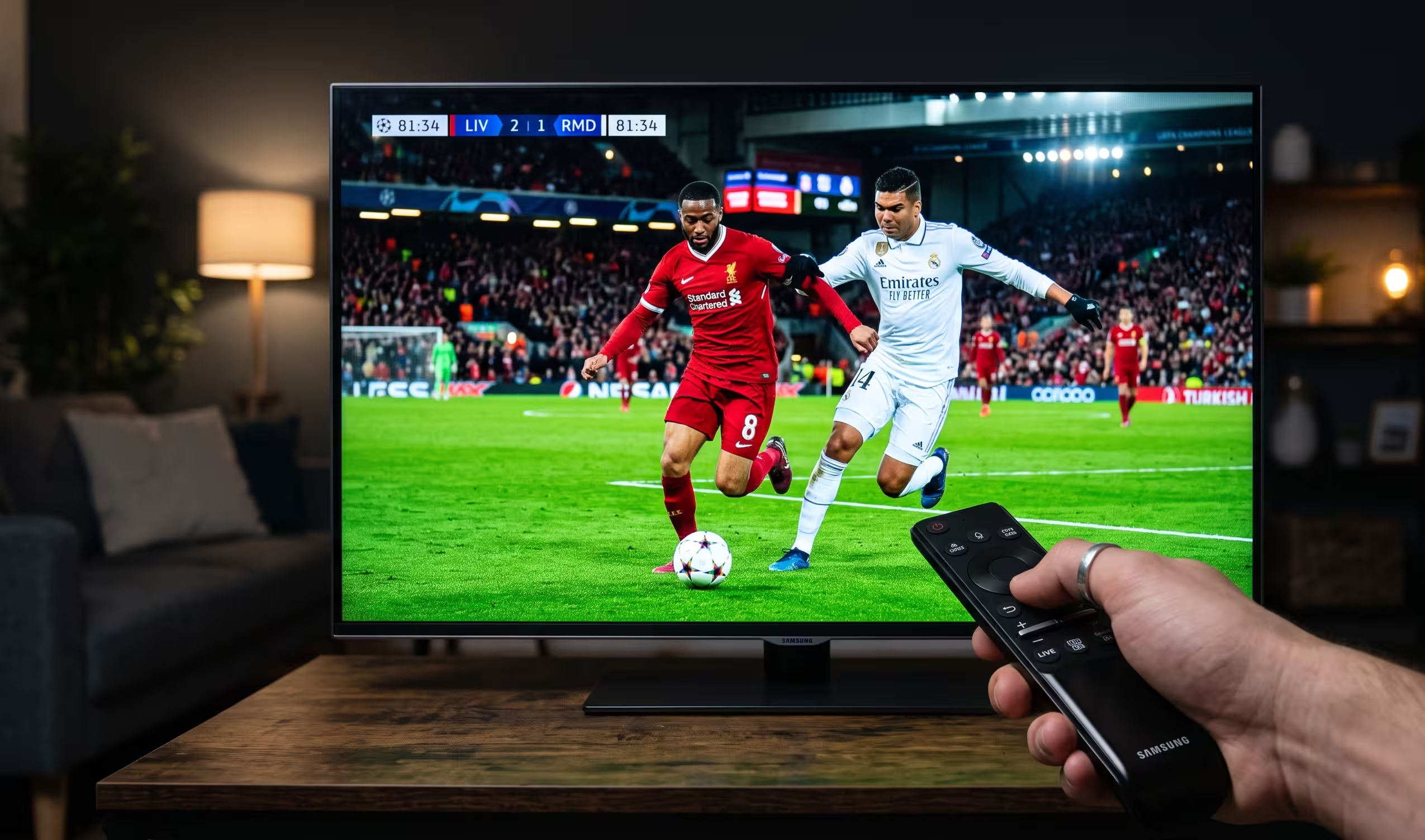
The World Cup just played a quarterfinal at Arrowhead. The Royals are in the middle of their season. NFL preseason starts next month. If you’re watching any of this on a TV that’s still running factory default settings, you’re seeing a worse picture than your TV is capable of delivering.
I calibrate TVs on almost every installation I do, and finding the best TV settings for sports is one of the most common requests I get. The same handful of adjustments make an immediate difference. These settings take about five minutes to change, they’re free, and they work on every major brand. No special equipment needed.
Start with Picture Mode
Every TV ships with a “Picture Mode” selector — and most people never change it from whatever the factory set. For sports, you want to avoid two extremes.
Vivid/Dynamic mode is the worst option for sports. It cranks brightness, saturation, and sharpness to maximum so the TV looks impressive on a showroom floor. On your couch, it makes grass look neon green, skin tones look orange, and fast motion looks jittery because the processing is fighting itself.
Movie/Cinema mode is calibrated for film — accurate colors, low brightness, warm tone. Great for watching a movie at night. Not ideal for sports in a bright room, because the picture looks dim and the motion processing is tuned for 24fps film, not 60fps live broadcast.
For sports, the right starting point is Standard or Sports Mode (if your TV has one). Sports mode on most TVs optimizes motion handling, boosts brightness slightly for daytime viewing, and keeps colors vivid without going nuclear. It’s not perfect out of the box, but it’s the right starting point to tweak from.
Fix the Motion — This Is the Single Biggest Improvement
Motion handling is where sports picture quality lives or dies. A soccer ball moving across the screen, a baseball pitch, a wide receiver cutting — if the TV can’t render motion cleanly, everything looks smeared or stuttery.
The problem: most TVs ship with motion smoothing cranked too high. I’ve written an entire post about the soap opera effect and how to fix it. For sports specifically, you want motion smoothing on low — not off, not high. Low gives you just enough interpolation to reduce judder on panning shots (like a camera following a player down the field) without making everything look artificially smooth.
Where to find this setting by brand:
Samsung: Settings → Picture → Expert Settings → Auto Motion Plus. Set “Blur Reduction” to 4-5 and “Judder Reduction” to 0-2. Or select “Custom” and dial it in manually.
LG: Settings → Picture → Advanced Settings → Clarity → TruMotion. Set to “User” and put De-Judder at 2-3, De-Blur at 6-7.
Sony: Settings → Display & Sound → Picture → Clarity → Motionflow. Set to “Custom” with Smoothness at 1-2 and Clearness at 1-2.
TCL (Google TV): Settings → Display → Picture → Advanced Settings → Action Smoothing. Set to “Low” or turn the slider to about 2-3 out of 10.
Brightness and Backlight
If you watch sports during the day in a bright room, your TV needs more backlight than what Movie mode provides. Bump the backlight setting to 70-80% for daytime viewing. This is different from the “brightness” setting — backlight controls how bright the panel gets, while brightness adjusts the black level.
For evening or night games, bring the backlight down to 40-50%. This is where LED bias lighting behind the TV makes a real difference — it reduces eye strain from high contrast and makes the picture appear more vivid without increasing actual brightness. I install bias lighting strips on most of my TV mounting jobs and every client notices the improvement immediately, especially for night-game watching.
Color Temperature
Leave color temperature on “Warm” or “Warm 1.” Every calibration standard (ISF, THX) uses a warm color temp as the reference because it matches how content is mastered. “Cool” mode makes everything look blue-tinted. People think it looks “sharper,” but what they’re actually seeing is inaccurate color that makes skin tones look pale and grass look teal instead of green.
The one exception: if your room has a lot of cold white LED ceiling lights, “Warm” mode can look yellow by comparison. In that case, “Warm 1” (one step cooler) is a good compromise. But never “Cool.”
Sharpness: Turn It Down
This one surprises people. The “Sharpness” setting on most TVs doesn’t actually add detail — it adds edge enhancement, which creates a white halo around high-contrast edges. On sports, this means player outlines look like they’re glowing, and text overlays (score, clock, graphics) look artificially crunchy.
Set sharpness to 0-10 out of 100. On some brands, 0 is the right answer. The TV’s native resolution provides all the sharpness you need — the setting only adds artifacts.
Game Mode: When to Use It, When to Skip It
Game mode reduces input lag — the delay between a signal arriving and the picture appearing on screen. If you’re playing FIFA or Madden, game mode matters. The lower the lag, the more responsive the controls feel.
But for watching live sports (not playing them), game mode sacrifices picture processing for speed. It disables motion smoothing, reduces color accuracy, and sometimes dims the picture. For broadcast viewing, leave game mode off and use the motion settings above instead.
The 5-Minute Sports Settings Cheat Sheet
Picture Mode: Standard or Sports
Motion Smoothing: Low / Custom (see brand-specific settings above)
Backlight: 70-80% daytime, 40-50% nighttime
Brightness: 50 (default is usually fine)
Contrast: 85-90
Color Temperature: Warm or Warm 1
Sharpness: 0-10
Game Mode: Off for watching, On for playing
Noise Reduction: Off
If you’ve read this far and just want the quick answer, here are the best TV settings for sports across every brand:
If you want it dialed in further — calibrated to your specific room’s lighting and viewing distance — that’s something I do as part of my professional TV calibration service. It takes about 30 minutes, and factory settings vs a calibrated picture is night and day.
Want your TV calibrated before the next big game? Call or text (913) 674-9723 or visit smarthomeconnectllc.com/contact-us.
Serving Lenexa, Overland Park, Olathe, Shawnee, Leawood, and the full KC metro.