Why Does Your New 4K TV Look Like a Cheap Soap Opera? (And How to Fix It)
Want a cinematic picture that actually looks like the movies?
We calibrate picture settings, mount your TV, and set up home theater gear so movie night looks right.
Call or text (913) 674-9723 to book
Basic TV install from $150 · Over 175 Google reviews at 4.9
Have you ever sat down to watch a blockbuster movie like Dune or The Avengers on your brand-new 4K TV, only to feel like something was… wrong?
The picture is clear, sure. But the movement feels unnatural. It looks too smooth. It looks like a home video, a news broadcast, or a daytime soap opera. It definitely doesn’t look like “cinema.”
You aren’t imagining things. This is a very real phenomenon known in the industry as the “Soap Opera Effect.”
Here is the tech tip that manufacturers often hide in the menus, and how you can restore the cinematic magic to your living room.
The Science Behind Why Your TV Image Often Looks Fake
To understand why this happens, we have to talk about Frame Rates.
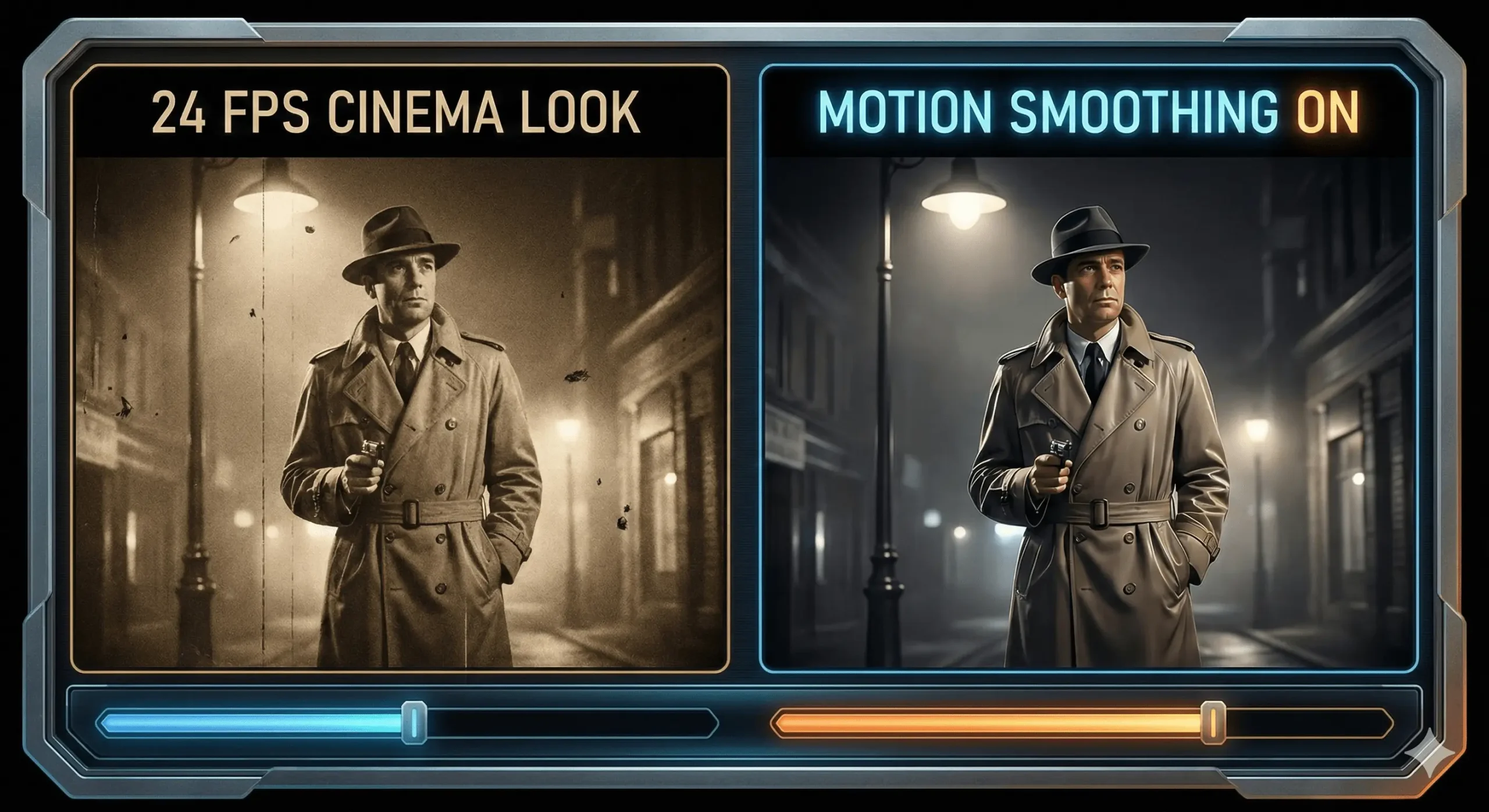
For almost a century, movies have been filmed at 24 frames per second (fps). This specific speed is what gives films their dreamlike, cinematic quality. It has a slight natural blur that our brains associate with storytelling.
However, modern displays—whether you have an LCD, OLED, or QLED TV—operate at much higher speeds, usually refreshing 60 or 120 times per second (60Hz or 120Hz).
Because 24 doesn’t fit evenly into 60 or 120, your TV tries to “help.” It uses a powerful processor to invent fake frames and insert them between the real ones to bridge the gap. This process is called Motion Smoothing or Frame Interpolation.
When is Motion Smoothing Good?
Manufacturers enable this by default because it looks great for certain content:
- Live Sports: Watching the Chiefs play involves fast camera pans and flying balls. Smoothing makes the action easier to follow without blurring.
- Video Games: Higher frame rates make gameplay feel more responsive.
- Reality TV & News: Content shot on video cameras (30fps or 60fps) looks natural with smoothing.
When is it Bad?
It is generally bad for Movies and TV Dramas.
When the TV adds fake frames to a movie, it removes the cinematic motion blur. It makes high-budget actors look like they are walking around a set in a generic video, rather than inhabiting a character in a film. It kills the immersion.
This issue is so prevalent that even Tom Cruise and director Christopher Nolan have released public service announcements begging people to turn this setting off!
How You Can Fix This Issue in Your Settings
The confusing part is that every brand calls this feature something different. Here is a cheat sheet to find it in your settings menu right now:
- Samsung: Look for Auto Motion Plus or Picture Clarity Settings. Turn it to “Off” or lower the “Judder” reduction to 0.
- LG: Look for TruMotion. Select “User” and turn the sliders down, or turn it off completely.
- Sony: Look for Motionflow.
- Vizio: Look for Smooth Motion Effect.
The “Filmmaker Mode” Shortcut
If digging through menus sounds annoying, check if your remote has a button for picture modes (or look in the main picture settings).
Many newer TVs (2020 and later) have a setting called “Filmmaker Mode.”
This is an industry-standard setting created by the UHD Alliance. When you select this mode, the TV automatically:
- Turns off all Motion Smoothing.
- Restores the correct aspect ratio.
- Preserves the correct colors and frame rates intended by the director.
Why Context Is the Key to the Best Picture Quality
We aren’t saying Motion Smoothing is evil. It’s technology, and technology is a tool meant to be used correctly.
- Sunday Football? Turn Motion Smoothing ON (or use “Sports Mode”) to see the ball clearly.
- Friday Movie Night? Turn Motion Smoothing OFF (or use “Filmmaker Mode”) to experience the film as it was meant to be seen.
Your TV is a powerful computer. Knowing how to tell it what you are watching is the key to getting the best performance out of your investment.
Why Manufacturers Leave Motion Smoothing On by Default
Motion interpolation helps sports look sharper, but manufacturers often leave it on for all content because of the showroom floor: in a bright retail store, the brightest/smoothest set wins eyes. Your living room isn’t a showroom — those defaults often fight the film look you paid for.
Watch for Digital Artifacts Too
When the processor invents middle frames, fast action can create halos, edge tearing, or mushy glitches around moving objects. Turn smoothing off and those artifacts usually disappear with the soap-opera look.
Deeper Menu Paths We Use on Service Calls
- LG: Settings → Picture → Select Mode → Filmmaker Mode (or Picture Options → TruMotion → Off).
- Samsung: Settings → Picture → Expert Settings → Picture Clarity Settings → Off (not “Auto”).
- Sony: Motion → Motionflow Off or Custom (smoothness 0). Cinemotion can stay High/Auto for real 24p cadence without fake frames.
After you disable smoothing, the picture may feel slightly “stuttery” for about 20 minutes while your eyes readjust to real 24fps. That usually settles — and the cinematic look returns.
When Menus Aren’t Enough: Professional Calibration
Turning off soap-opera processing stops the damage. Calibration goes further because every panel is a little different out of the box. With a colorimeter we align white balance (often too blue from the factory), gamma/shadow detail, and color saturation to reference standards — so you see the film, not the TV’s processor.
For ISF-style calibration in the KC metro, call or text (913) 674-9723 or email info@smarthomeconnectllc.com.
Want a cinematic picture that actually looks like the movies?
We calibrate picture settings, mount your TV, and set up home theater gear so movie night looks right.
Call or text (913) 674-9723 to book
Basic TV install from $150 · Over 175 Google reviews at 4.9